How to Get Accurate Hindi, Hinglish and Regional-Language Transcripts
Every edit you make in VidCarve runs through the transcript, so transcript quality is not a detail — it is the whole editing experience. Four things decide how good yours is: the language VidCarve picks, whether you asked it to label speakers, the names and jargon you taught it, and how clean the audio was.
Three of those four have to be decided before transcription starts. This guide covers what to set up front, and what you can still fix afterwards.
The short version
- Leave the language blank unless you know it — VidCarve detects it, including Hinglish.
- Turn on Multiple speakers before uploading if more than one person talks. It locks at transcription.
- Add glossary terms before transcribing — names, brands and jargon it would otherwise mishear.
- Rename speakers in the transcript afterwards; that part is always editable.
- Use Studio sound on noisy recordings.
How does VidCarve know what language my video is in?
It listens. Before transcribing, VidCarve samples the first minute of audio and runs one cheap pass whose only job is to answer a single question: which transcription engine should handle this?
Indian languages — Hindi, Telugu, Tamil, Bengali, Marathi, Gujarati, Kannada, Malayalam, Punjabi, Odia, Urdu and others — go to a model built for them. Indian-accented English goes to an English model.
Why Hinglish is the interesting case
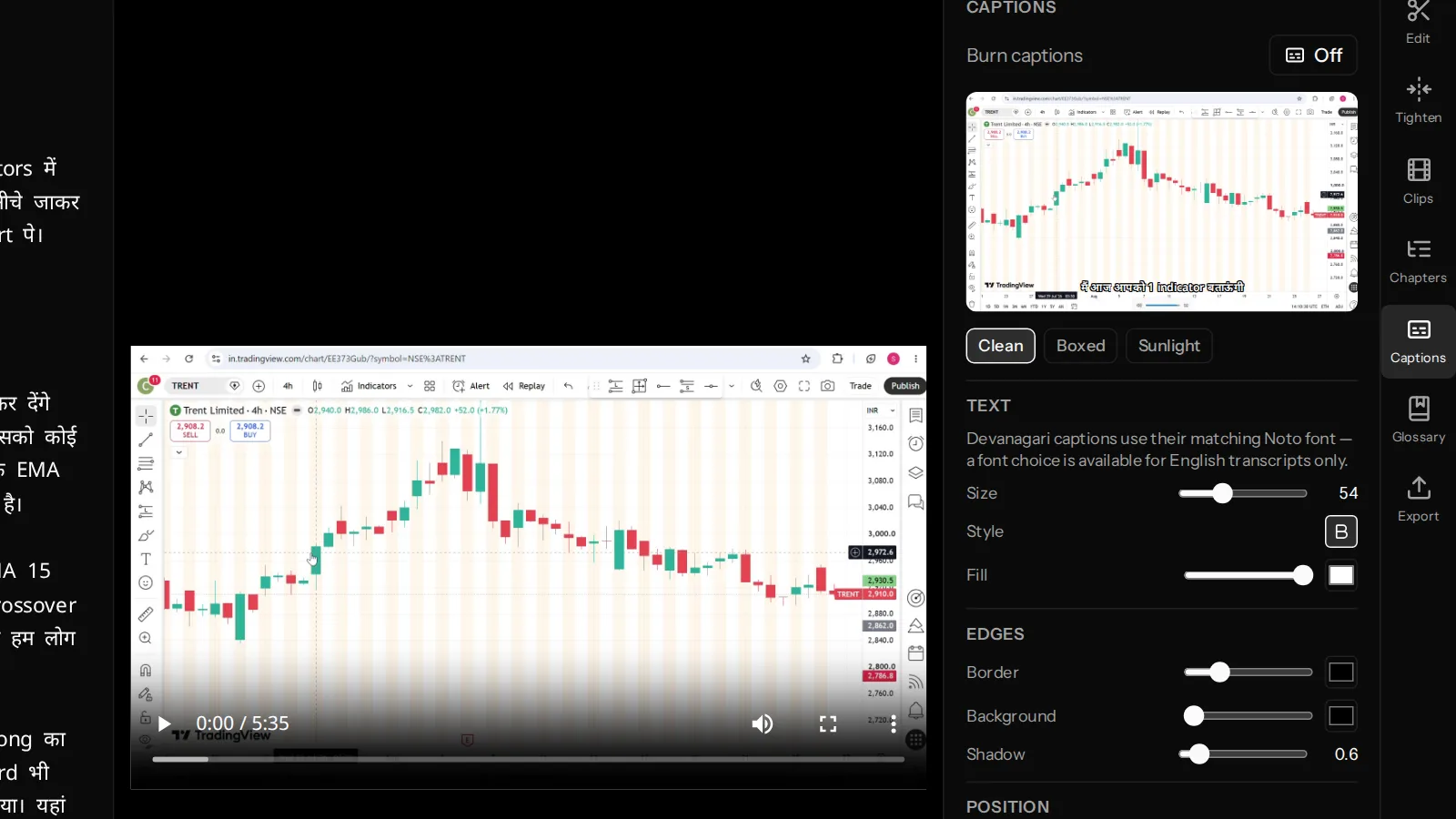
Ask a naive language detector about a sentence like "मैं आज आपको 1 indicator बताऊंगी जो बहुत useful है" and it will often answer "English", because it counts the English words. That answer would be actively harmful: routed to an English model, Hindi speech does not come back as a bad transcript, it comes back as a fluent English translation. You would lose the actual words, and with them the ability to edit by text.
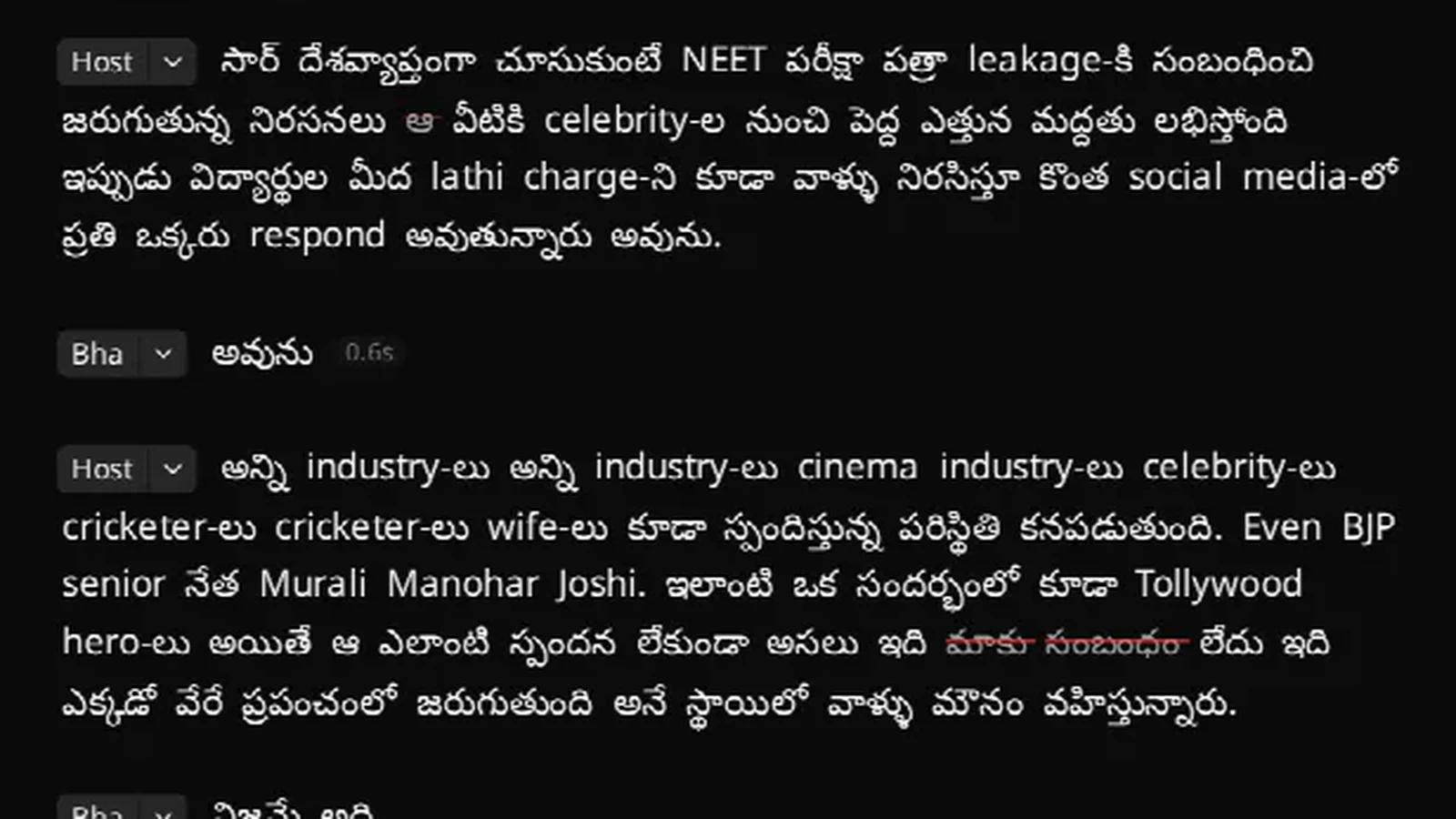
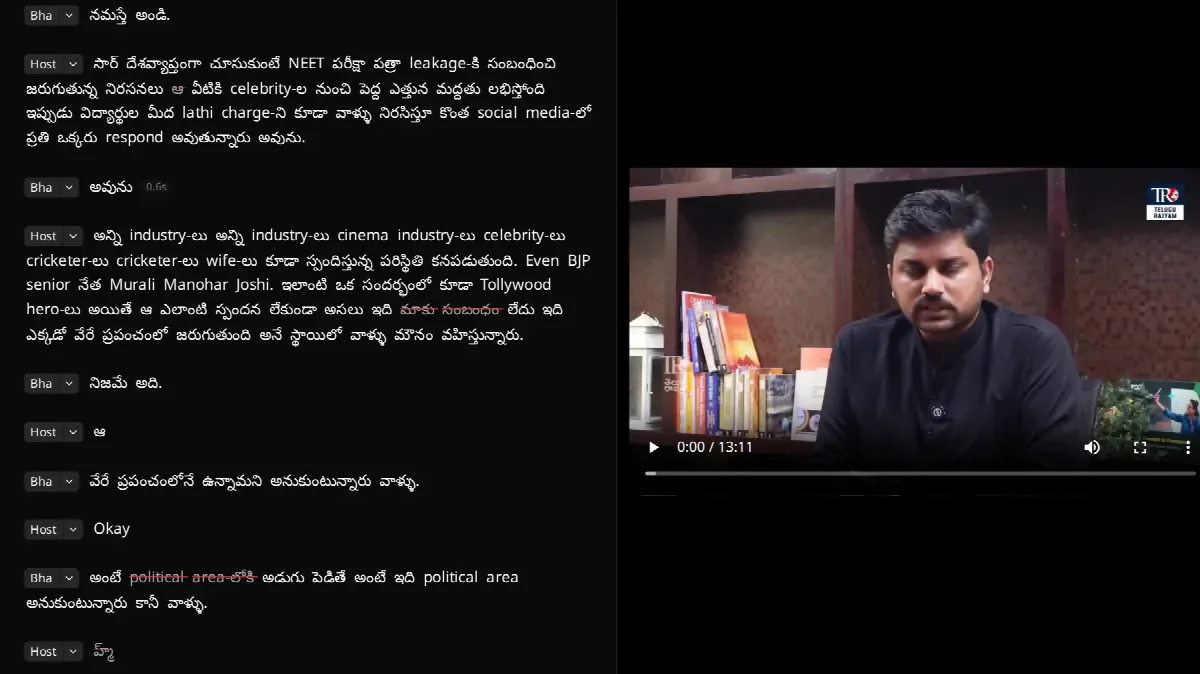
So VidCarve's detector is instructed to resolve code-mixed speech to its underlying Indian language. Hinglish arrives as Hindi, gets transcribed by the Indic engine, and the English words inside it are written in Latin script exactly as spoken. That is why the transcript in the editor mixes both scripts on one line — it is the honest record of what was said.
When to set the language by hand: fill in the Language field when you create the project only if you already know the answer and want to skip the guess. Leaving it blank is the right default.
How do I get speaker labels?
Turn on Multiple speakers on the upload screen, before the file goes up.
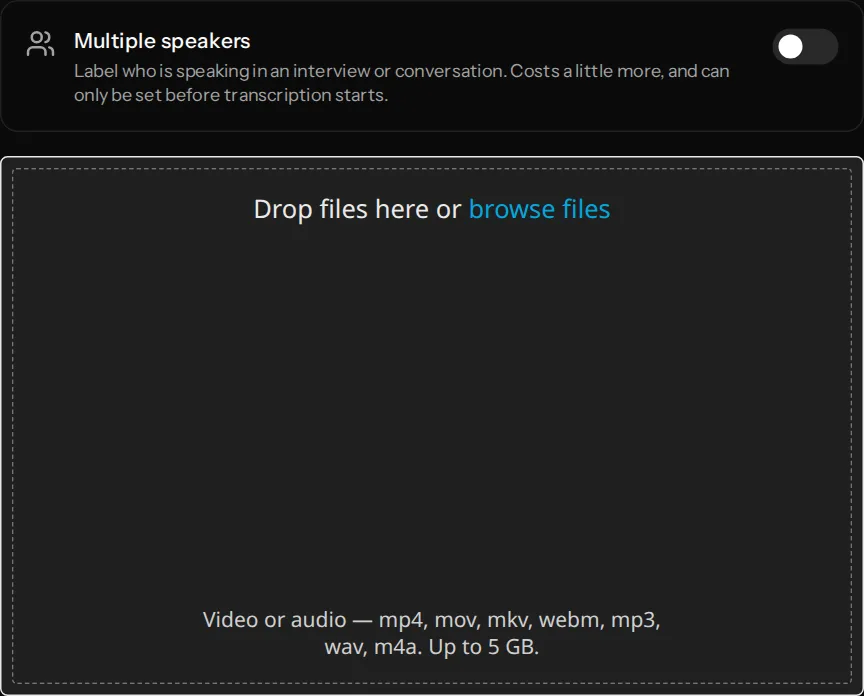
This is the one setting with no second chance. Speaker separation happens during transcription, so switching it on afterwards would mean transcribing the video again from scratch. If your video is an interview, a panel, a two-hander podcast or a Q&A, turn it on. For a single narrator, leave it off — it costs a little more and adds nothing.
Renaming and fixing speakers
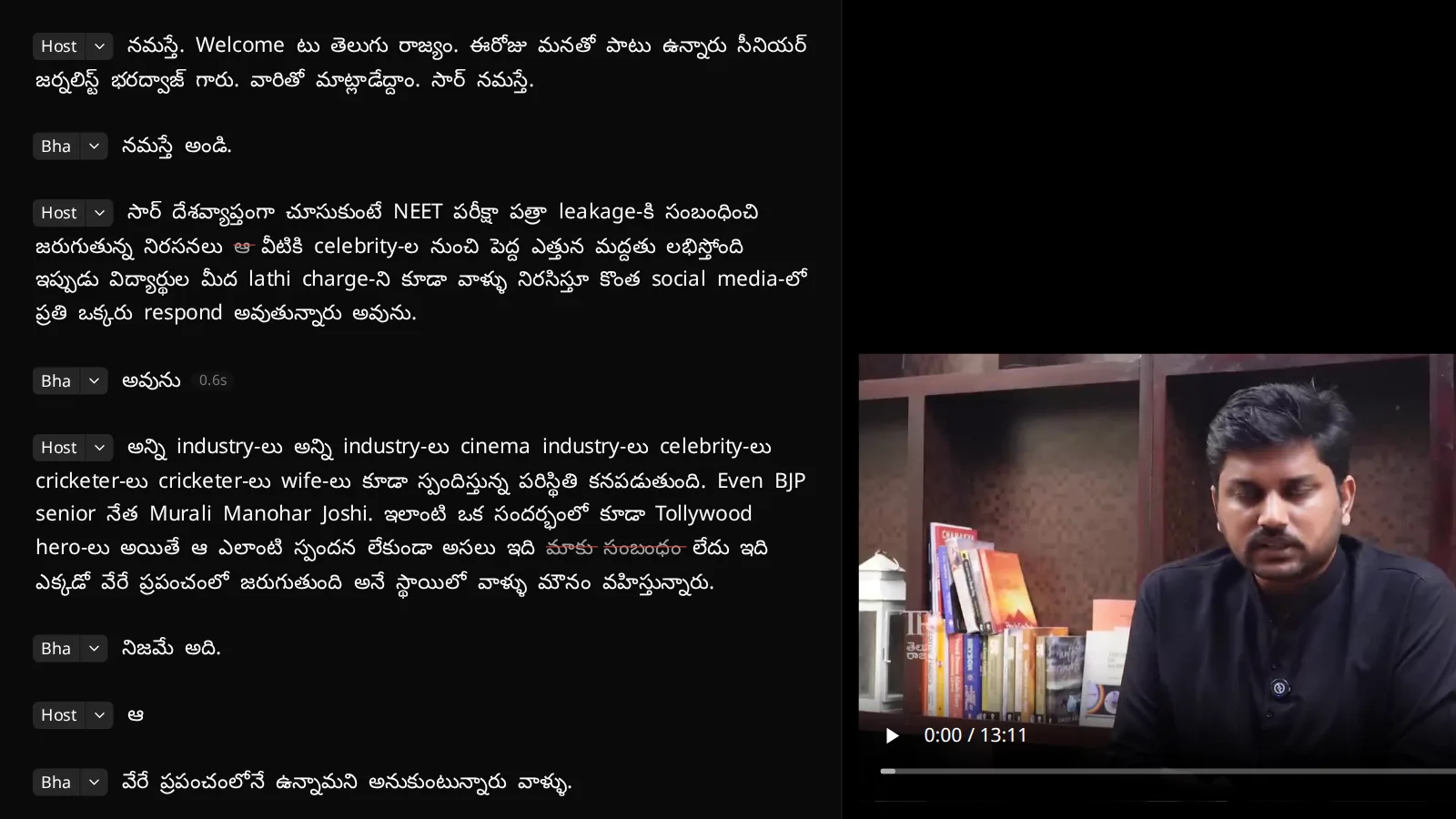
With speakers on, each paragraph carries a badge. VidCarve makes a first attempt at real names by reading the conversation — people introduce each other in the first minute of most interviews — and falls back to generic labels when nobody is named.
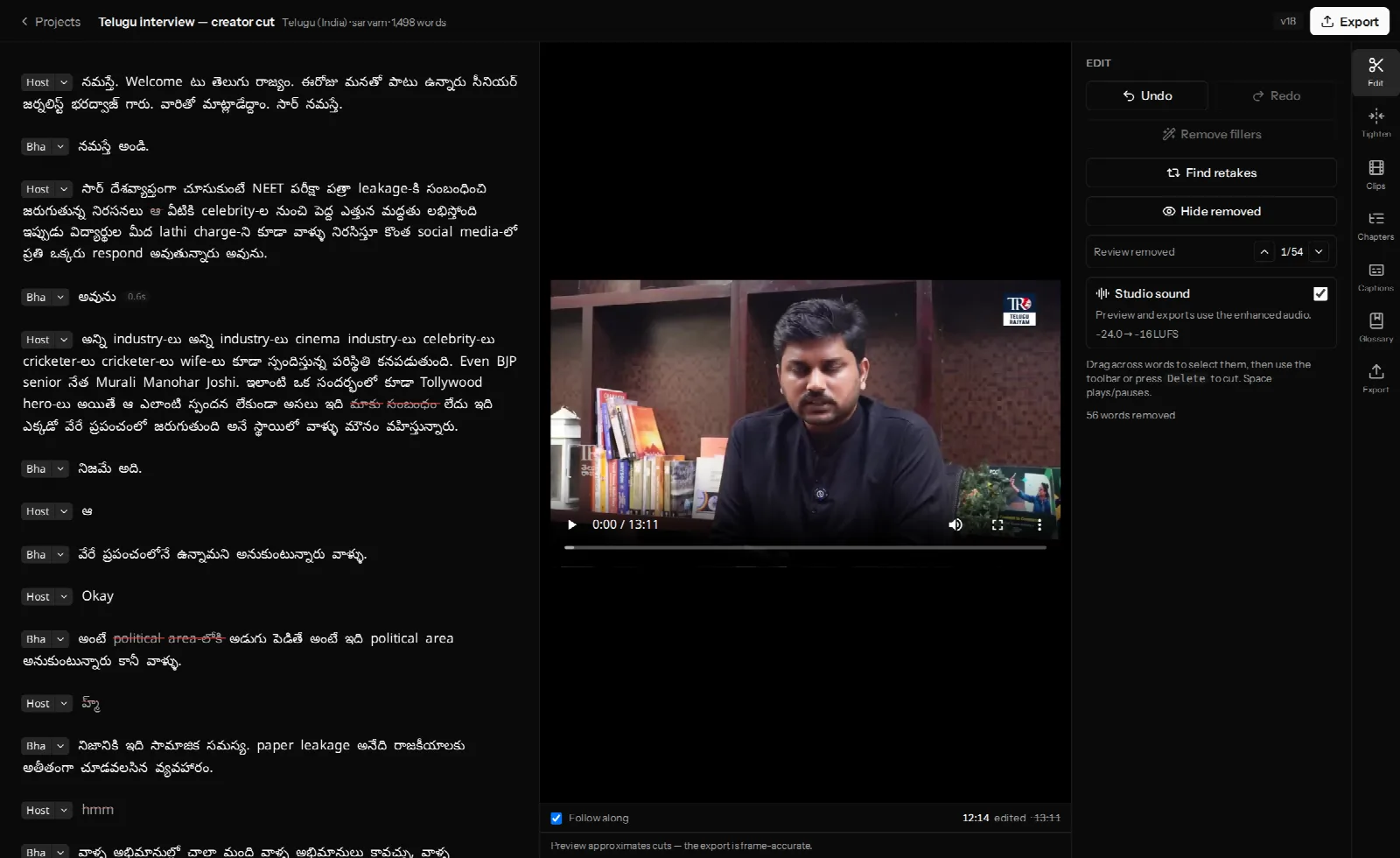
Everything here is editable after the fact:
- Click the name on any badge to rename that speaker everywhere at once.
- Click the caret to move a misattributed paragraph to a different speaker, or to merge two labels when the same person was split in two.
Your names always win. Once you have renamed a speaker, VidCarve will not overwrite it with a later guess.
How do I stop it mishearing names and jargon?
Every field has words no general model has heard enough of — a founder's name, a product, a scheme, a ticker, an ingredient. The Glossary tab is where you tell VidCarve about them in advance.
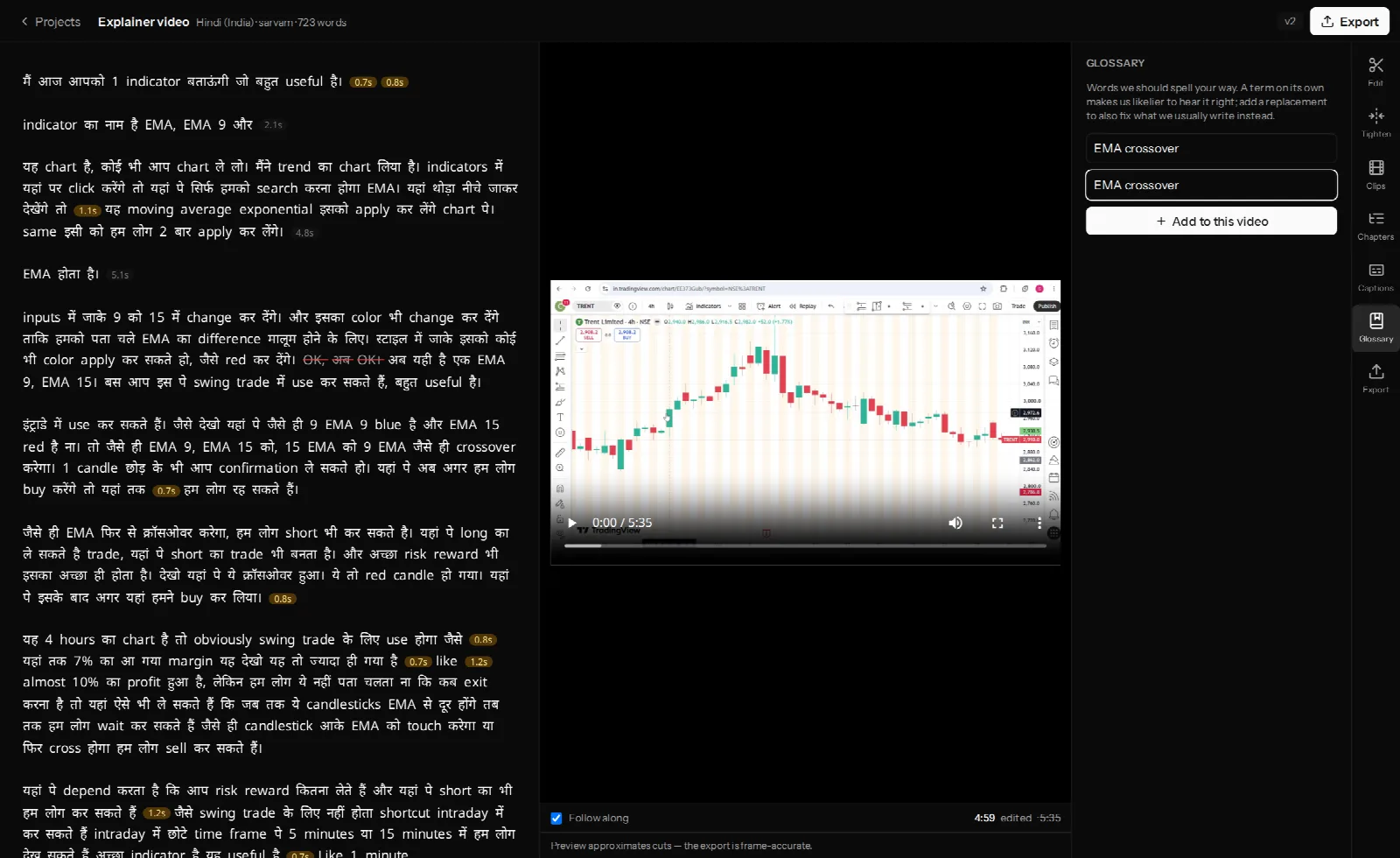
The two fields do different jobs:
- Word or phrase we hear — the term itself. Listing it alone makes VidCarve likelier to recognise it correctly.
- Write it as (optional) — the spelling you want. Use this when the transcript keeps producing a plausible wrong spelling and you want it corrected on the way in.
Account terms and project terms
The panel shows two lists. From your account holds the terms that apply to every project — your company name, your recurring segment titles, the jargon of your beat — managed in Settings. This video holds terms specific to one recording, like a guest's name.
A project term overrides an account term for the same word, which is what lets one video spell something differently without changing your defaults everywhere.
The timing catch
Glossary terms are read once, when transcription starts. Adding a term to a video that has already been transcribed does not change the transcript you are looking at.
That is why the panel offers re-transcribe: it runs the video again with your updated terms. If you are re-running minutes you already paid for, it is free — the panel tells you which case you are in before you commit.
The practical habit: add the obvious names before you upload, and treat re-transcribe as the fix for the ones you only discover by reading.
What if the audio itself is the problem?
No transcription model recovers what was never clearly recorded. Room echo, a fan, traffic, a lapel mic rubbing on a collar — these cost you accuracy directly.
Studio sound, in the Edit tab on paid plans, cleans up background noise and levels the loudness across the whole recording. It processes the full timeline before your cuts are applied, so the result stays even across every join, and it reports the loudness change it made.
It is a repair tool, not a substitute for recording well. If you can fix anything at the source, fix it there:
- Record in the smallest carpeted room you have, away from windows.
- Get the microphone close — a phone at arm's length beats a laptop across a table.
- Turn off ceiling fans and air conditioning for the take.
- Ask each speaker to say their own name in the first minute. It helps the speaker labels, and it helps you when you edit.
A pre-flight checklist
| Decide before uploading | Fix any time |
|---|---|
| Multiple speakers on or off | Speaker names |
| Glossary terms for known names | Merging or reassigning speakers |
| Language, if you are overriding detection | Adding glossary terms (needs a re-transcribe) |
| Audio quality at the source | Studio sound |
Frequently asked questions
Which Indian languages are supported?
The scheduled Indian languages, including Hindi, Bengali, Telugu, Marathi, Tamil, Gujarati, Kannada, Malayalam, Punjabi, Odia, Assamese, Urdu, Sanskrit, Maithili, Konkani and others, plus English.
Can I turn on speaker labels after transcribing?
No. Speaker separation happens during transcription, so it has to be set before the video is transcribed.
Will a glossary term change a transcript I already have?
Not on its own — you need to re-transcribe. That is free when the minutes were already paid for.
Why does my transcript mix Devanagari and English letters?
Because that is what was said. Code-mixed speech is transcribed as spoken rather than being forced into one script, which keeps the words editable and the captions faithful.
Does an accurate transcript matter after I finish editing?
Yes — the transcript is also what your captions, clips and chapters are built from. Every downstream feature inherits its accuracy. See adding burned-in captions and turning a long video into vertical clips.